How to use
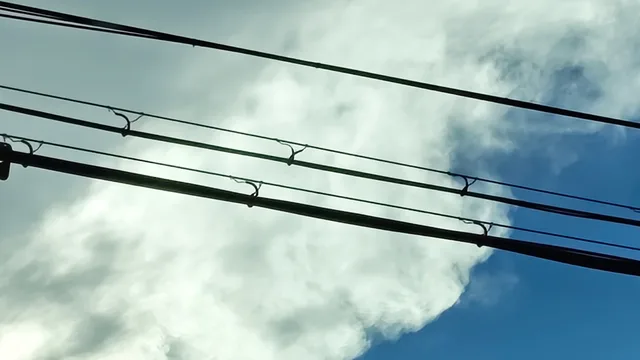
- 1Upload a photo
- 2Choose a difficulty
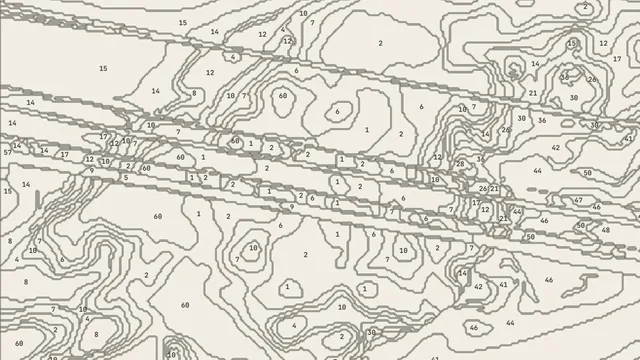
- 3Paint by number
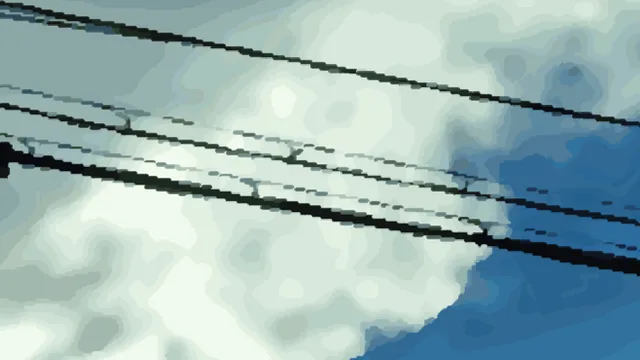
- 4Finish and save
Controls
- WheelZoom in and out
- Right-dragMove the view
- SpaceHold to see the original
- Ctrl+ZUndo
Phones: pinch to zoom, drag with one finger to move, long-press to see the original
- Easy ModeMedium regions, 16 colors. One click fills a region automatically, and only the correct color is accepted. Hints (auto-fill one remaining region) and undo are available.
- Normal ModeSmall regions, 32 colors. Click to fill a region; wrong colors can be painted too. The eraser and undo are available.
- Hard ModeSmall regions, 48 colors. All numbers are black, so compare them with the numbers in the palette. Wrong colors can be painted, and the eraser and undo are available.
- Devil ModeWorks like Hard Mode, but no numbers appear on the canvas, so you match colors by eye. The eraser and undo are available.
- Freestyle ModeInstead of clicking regions you paint freely with brushes. Choose pencil, crayon, brush or marker and change the size. You can go outside the lines, and numbers are hidden by default. Undo is not available.
- 💡 HintFills one remaining region for you. Easy Mode only.
- 🧽 EraserTurn it on and click a painted region to clear its color. Available in Normal, Hard and Devil; picking a color in the palette turns it off.
- ↶ UndoTakes back your last paint or erase (Ctrl+Z). Redo is Ctrl+Shift+Z. Not available in Freestyle.
- Find remaining regionsMakes the unpainted regions of the selected color blink. The number in brackets is how many are left. If they are off screen, the view moves to one.
- Numbers / OutlinesTurn the numbers and region lines on or off. Devil Mode has no numbers button.
- ⤢ Fit to screenBrings a zoomed or moved view back to the starting size.
- DownloadSaves the current picture as a PNG. Numbers and outlines are saved as they are shown.
- BrushesIn Freestyle, pick a texture (pencil, crayon, brush, marker) and change the size with the slider.
- FinishEnds the painting and opens the results screen.
- Show wrong regionsOn the results screen, see the original and your painting side by side and which color each wrong region needed.
Score = completion × 0.4 + color accuracy × 0.6
- S+98 points or more
- S90 to under 98 points
- A75 to under 90 points
- B55 to under 75 points
- CUnder 55 points
- ResultsSee your rank, completion and color accuracy.
- CompareView the original and your artwork side by side.
- Show wrong regionsCompare the original and your painting side by side and see which colour each wrong region needed.
- SaveSave as PNG, JPG or a comparison image.
- ResumeYour work is saved automatically. Use "Resume saved artwork" on the first screen to continue.
Is my photo uploaded to a server?No. It is processed only in your browser.
Is my work saved?Yes, automatically. Use "Resume saved artwork" on the first screen to continue.
Does it work on smartphones?Yes. Zoom and move with touch gestures.
What kind of photo works best?Photos with clear color boundaries. Start with Easy Mode, which has large regions.
Is it free?Yes, it is free.
The numbers are too small to read.Zoom in with the mouse wheel or two fingers and the numbers get bigger. Narrow regions need more zoom.
Open the full guide page ↗